Info Page
How to schedule inspections in the PermitSF portal
Screenshots and instructions for inspection scheduling in PermitSF
These instructions are about inspections for PermitSF applications, with record numbers that begin with BLDG, ELEC, or PLMB. For other permit applications, refer to other instructions about scheduling an inspection.
About inspections in PermitSF
Both primary applicants and guests can schedule inspections in the PermitSF portal.
Inspections are booked per permit application.
Click into an application on your PermitSF dashboard. You will also receive an email when you are able to request inspections for a permit application.
1. Click on "inspection" on the left-hand side of your permit application in PermitSF
When an inspection can be scheduled, an Inspection step will be active on the left side of any permit application. It will have a blue triangular "Play" button next to it.
On the Inspection screen, refer to the Inspections tab for the number of passed, partially passed, failed, and locked (reserved but not scheduled) inspections. The Inspections tab also has information about completed and scheduled visits.
The Reports tab will contain inspection reports and notes of any completed inspections.
The Group of inspections are the inspection types available for your permit scope. You can book an entire group of inspections at once, or one at a time.
You can also send a message to staff in the Messages section.
To schedule an inspection, click on the bright blue "Book" button that corresponds to the inspection type you need.

2. Confirm the inspection type you want to request
Confirm the inspection type by clicking "Next."

3. Request a date and time for your inspection
Select a date and time for your inspection.
If your inspection type will only need one visit, uncheck the "I require more than one visit" box.
Scheduling more than one visit for the inspection type
If your inspection will need more than one visit:
- Ensure the "I require more than one visit" box is checked.
- "Enter A Label" for each visit. The label should give the inspector information about the areas you want inspected for that visit.
- "Add Booking" to save the label and add another visit by selecting another date and time.
- Click "Next" once you are finished scheduling all visits.
You can only book a time for the next day by 3:00pm the day before.

For off-hour requests
If you are requesting an inspection earlier than 8:00am or later than 4:00pm, select the "I require an off-hours inspection (beyond 8AM - 4PM)" checkbox. Enter information for your request.
We will message you after your request is approved.

4. Add contact information
Add contact information for the person who will be at the inspection. You can add the primary applicant, any guests, or add a brand new person.

5. Add any notes for the inspector
Enter any information or instructions the inspector will need to access the site. Examples include access codes or directions.

6. Confirm the inspection
Review the information you entered, and click the "Submit" button.

7. Wait for a call from the inspector
The morning of your scheduled inspection, the inspector will call you and give you an approximate arrival time.
If you would like to change the time of your inspection, you can ask the inspector when they call.
Canceling or adding inspection visits
General information about canceling or adding inspection visits
You can only cancel an inspection in PermitSF within 24 hours of your time slots. For morning appointments, the deadline is 8:30am the day before. For afternoon appointments, the deadline is 12:30pm the day before.
You can request extra visits for a date and time. Staff will review your request and send you an email notification to pay. Once you have paid for the additional inspections, the date and time will be confirmed.
How to cancel or add inspection visits
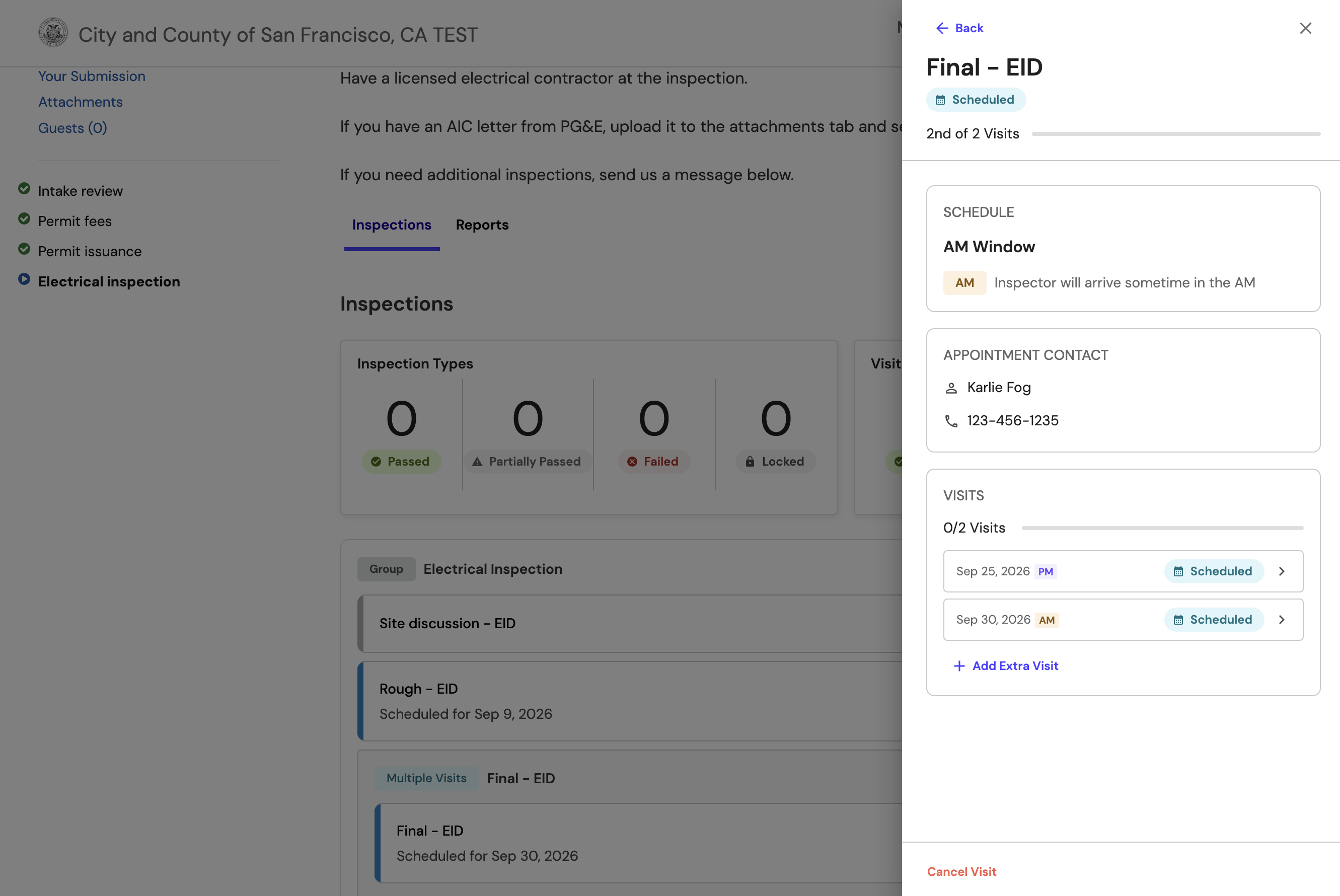
Click into the inspection type you want. More information will appear from the right side of the screen. You can:
- Add extra visits by selecting "Add Extra Visit"
- Cancel the visit by selecting "Cancel Visit"
When canceling one out of multiple scheduled visits, confirm you are canceling the visit you want to cancel. Check the number on top of the right side.
In the following image, the second scheduled inspection on September 30, 2026 will be cancelled if the "Cancel Visit" button is clicked.
Uploading documents for your inspector
To pass documents, photos, or plans for your inspector, upload it as an Attachment to your permit application.
